Showing posts with label iphone hacks. Show all posts

Sunday, 31 July 2016

Apple delivers a 'significant' update with iOS 9.3


7 comments


If nothing else, those with newer iPhones and iPads should sleep easier with Night Shift
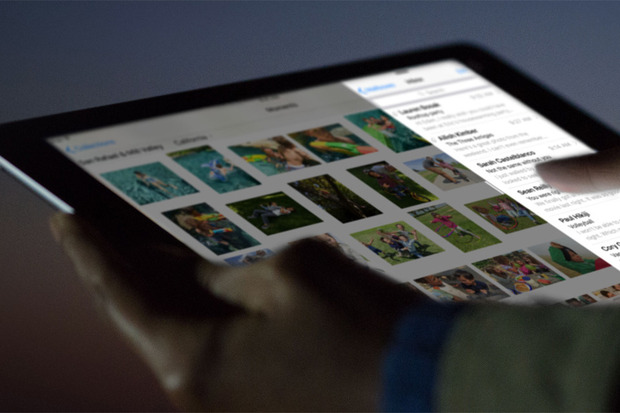
iOS 9, the mobile OS that powers Apple's iPhone, iPad and iPod touch, got a significant update Monday (when Apple also unveiled a new 4-in. iPhone and a 9.7-in. iPad Pro) with the arrival of iOS 9.3. The updated OS introduces several new features, including new 3D Touch shortcuts for existing system apps, Wi-Fi call support for Verizon customers, the ability to encrypt individual Notes, and -- most prominently -- a new Night Shift mode that automatically shifts the white balance on newer iPads and iPhones to a warmer color spectrum to help reduce eye strain and improve sleep. iOS 9.3 also brings updates to CarPlay, as well as enhancements to make the iPad a better tool for educational use.
The development cycle for ios 9.3 encompassed seven developer betas and several public betas, so this update was a long-time coming. That lengthy gestation period should result in a stable final build, but if you're worried about that, you can just wait a few days to see if any major bugs snuck through Apple's quality assurance process and into the final build.
Not going to wait, are you? Didn't think so.
The update can be installed by tapping Settings: General: Software Update, and then following the necessary prompts. If you're more of an old-school user, you can also  upgrade your iOS device through iTunes. Update sizes will vary depending on which device is being upgraded. For the iPhone 6S, iOS 9.3 weighs in at a sizable 1.7GB; for the iPad Pro, it's 1.5GB. Every device compatible with iOS 9 can -- and should -- run this update, but some features are limited to more recent models. (Night Shift, for instance, only works on the iPhone 5s or later, the iPad Pro, iPad Air or later, the iPad mini 2 or later and the sixth-generation iPod touch.)

Sleep easier with Color Shift?


Night Shift can be set to activate at
specific times of day.


Night Shift is the most noteworthy feature, and will likely affect the most users. By default, at sunset Night Shift changes the display's color from a cooler spectrum (which emphasizes blue light) to a warmer one (which is more yellow/orange). This is done in an effort to not only reduce eye strain but to help us sleep better. The theory is that blue light disrupts the body's ability to rest, therefore keeping us awake even when we want to sleep. Shifting to a warmer color spectrum cuts back on blue light, and allows the body to naturally produce the chemicals needed to rest.

By default, Night Shift uses your specific location to determine when exactly to kick in at sunset and return the display to the normal color spectrum at sunrise. There's also an option for a more manual approach that lets you schedule Night Shift for a custom set of hours. Or you can toggle it on or off using the new button in the Control Center. (Swipe up from the bottom of the display to show Control Center; the toggle is centered above the Home button.)

Initially, I was uncertain about how well Night Shift would work. The shift takes some getting used to -- and the intensity can be adjusted via a slider under the Night Shift section of Settings: Display & Brightness. Your eyes and the way the brain processes color does grow accustomed to the change, though, and after a while you won't notice it as much.

One thing I found: Scheduling Night Shift to turn on at a particular time is actually a good way to stay more aware of the passing hours. I tend to lose track when working on the latest project, and seeing the device in my hand shift in color reminds me it's about time to put the electronics away.

iPad for Education

In an effort to keep the iPad a relevant education platform, Apple has added features in iOS 9.3 that addresses earlier shortcomings. These changes include multiple login support for different students; a mobile device management (MDM) portal for easier management of Apple IDs, apps, and other tweaks; school-assigned managed Apple IDs; and a new app called Classroom that allows a teacher to launch an app on every student's iPad, and then guide them through lessons and keep up with each student's progress. Classroom also allows teachers to view students' iPad screens, launch and lock down apps, and even display a student's screen on an AppleTV via AirPlay.

iOS 9.3 rolls out new management features for education that would be useful in the workplace, too.

3D Touch additions
For iPhone 6S and 6S Plus users, more system apps get new 3D Touch shortcuts. Those include the Settings app (with shortcuts to Battery, Wi-Fi, and Bluetooth panels); the Weather app; the App Store app (including an Update All apps option, as well as shortcuts to Purchased, Redeem, and Search); Compass; Health; and the iTunes Store.

As well as those 3D Touch shortcuts, many system apps get tweaks of their own, including:


  • A new Activity tracker dashboard in Health. It syncs with and displays Apple Watch data and goals, similar to the widget in the Activity app. And to encourage and help people discover even more ways to be healthy, the Health app now sports third-party app suggestions for sleep, workout and weight tracking. That's all well and good, but Apple really should take a page from TactioHealth and have Health data that goes beyond simple graph displays, perhaps by explaining what the data means and showing in an easy-to-understand interface how your readings measure up to what's considered medically normal
  • An updated Music app that makes it easier to access the album of the currently playing song. Just tap the song title to access the rest of the album. With this change, Apple moved where you tap to change a song rating. To do that, you now tap the album art. (Song ratings will appear above lyrics -- if the song has lyrics -- or are centered in the album art section. Note: third-party apps can now access your music library and even add content.
  • A tweaked News app. It's faster, and the For You section has been updated to provide more relevant content.
  • A more secure Notes app; It now supports locking and encrypting individual notes so that only those with a device password or a matching fingerprint via TouchID can access the content.
  • Other additions include: Wi-Fi calling for Verizon, which will bring Verizon customers up to par with a feature that has been available already for AT&T customers; iBooks can sync PDFs and assorted items through iCloud across devices; support for more than one Apple Watch, as long as that Apple Watch is running watchOS 2.2 and is synced to an iOS device running 9.3; and the device About screen now tells you if your phone is being actively managed.
  • And finally, CarPlay -- for those lucky enough to own a car that supports it -- has been updated with new features, including updated Maps that will better help you find nearby locations such as gas stations, restaurants, parking, and more and a Music app that now sports New and For You sections. The latter move is designed to make exploring new music that much easier when you're on the go.
  • Although this was just a point update, iOS 9.3 adds a variety of features, bug fixes and security tweaks that should keep users while we await more information about Apple's direction at this summer's upcoming Worldwide Developer's Conference (WWDC).


    Read More

    4 new ways to bypass passcode lock screen on iPhones, iPads running iOS 9


    2 comments


    Four scenarios for bypassing the lock screen passcode on iPhones and iPads running iOS 9 were demonstrated in a proof-of-concept video. Apple has not issued a patch, but there is a temporary solution to protect yourself.


    There are multiple bypass vulnerabilities which could allow an attacker to get past the passcode lock screen on Apple devices running iOS 9.


    The details for four different attack scenarios were disclosed by Vulnerability Lab. It’s important to note that an attacker would need physical access to the device to pull this off; that being said, the advisory says the hacks were successfully executed on iPhone models 5, 5s, 6 and 6s as well as iPad models Mini, 1 and 2 running iOS 9 versions 9.0, 9.1 and 9.2.1.

    Security researcher Benjamin Kunz Mejri, who disclosed a different method for disabling the passcode lock screen on iOS 8 and iOS 9 about a month ago, discovered the flaws. Vulnerability Lab posted a proof-of-concept video showing multiple new ways for a local attacker to bypass the passcode in iOS 9 and gain unauthorized access to the device.

    “Local attackers can use Siri, the event calendar or the available clock module for an internal browser link request to the App Store that is able to bypass the customer’s passcode or fingerprint protection mechanism,” the disclosure states. The attacks exploit vulnerabilities “in App Store, Buy more Tones or Weather Channel links of the clock, event calendar and Siri user interface.”


    There are four attack scenarios explained in the disclosure and demonstrated in the proof-of-concept video; each begins on an iOS device with a locked passcode.


    The first scenario involves pushing the Home button to activate Siri and asking her to open a non-existing app. Siri responds that you have no such app, but she “can help you look for it on the App Store.” Tapping on the App Store button opens a “a new restricted browser window.” Either select update and open the last app, or “push twice on the Home button” for the task slide preview to appear. Swipe over to the active front screen task and that bypassed the passcode lock screen on iPhone models 5, 5s, 6 and 6s.


    The second scenario is similar, first pushing on the Home button for two seconds to activate Siri and then asking to open the clock app. Switch to world clock in the bottom module and tap the image for the Weather Channel LLC network; if the weather app is deactivated by default, then a new restricted browser window will open which has App Store menu links. Click update and open the last app, or tap twice on the Home button to get to task slide preview. Swipe over to the active front screen and voila – passcode lock screen bypassed again; this reportedly works on iPhone models 5, 5s, 6 and 6s.


    The third attack scenario works on iPad model 1 and 2, but basically follows the same steps as scenario two to bypass the passcode and gain unauthorized access to the device.


    The fourth way to bypass the lock screen passcode involves forcing Siri to open by pushing the Home button and asking her to “open Events/Calendar app.” An attacker could tap the “Information of Weather Channel” link which is found at the bottom of the screen next to the “Tomorrow module.” If the weather app is deactivated by default, then a new restricted browser window opens with App Store links. Tap update and open the last app, or push twice on the Home button to bring up the task slide preview. Swipe over to select the active front screen and the passcode on the lock screen is bypassed.

    Although the Apple security team was reportedly notified on January 4, there are no dates listed in the vulnerability disclosure timeline for Apple responding or developing a patch. Vulnerability Lab proposed the following temporary solution for users to harden device settings:

    1. Deactivate in the Settings menu the Siri module permanently.
    2. Deactivate also the Events Calendar without passcode to disable the push function of the Weather Channel LLC link.
    3. Deactivate in the next step the public control panel with the timer and world clock to disarm exploitation.
    4. Activate the weather app settings to prevent the redirect when the module is disabled by default in the events calendar.


    Read More

    Monday, 25 July 2016

    Install PlayStation Emulator on iOS 9 Retroarch


    8 comments
    We recently covered a step by step tutorial on How to install your favorite GBA4iOS emulator on iOS 9 and it’s time for some more exciting tutorial on How to install PlayStation Emulator on iOS 9 with Retroarch. Apple Store is growing in terms of games as the number of games are increasing tremendously. Nowadays you can find any type of the game you want to play but most of us miss the way we used to play the games in childhood days using game consoles.
    I am a big fan of handheld game consoles and I spent quite a good time with them in my childhood. But nowadays all I can see is smartphones and tablets which also include iPad’s and iPhone’s and also makes me sad how these generation kids are missing those amazing titles which we used to play on our gaming consoles. They can be termed as classics and I am missing them like hell. Most of us are familiar with GBA4iOS emulator which gained a huge popularity and fanbase.
    Now it’s time for PlayStation emulator on iOS 9, Hell yeah now you can have a PlayStation emulator on your iPhone or iPad thanks to Retroarch. The process to install Playstation Emulator on iOS 9 is quite easy and will only take a few minutes of your precious time. With the help of PlayStation Emulator on iOS 9, you can get a chance to play classic titles and old retro games on your devices. If you are just like me thinking to play all these games on your iPhone’s or iPad’s then you are in right place.
    Still Yesterday I have been enjoying some titles on my GBA4iOS emulator on iOS 9, One of my friend messaged me about PlayStation emulator for iOS 9 and I jumped on the internet to know how to install PlayStation Emulator. The results didn’t satisfy me which made me write a tutorial on “How to Install PlayStation Emulator on iOS 9 Retroarch“.

    How to Install PlayStation Emulator on iOS 9 Retroarch

    Before jumping straight into our guide, there are few prerequisites which you need to take care of. Unlike GBA4iOS emulator which can be installed without a jailbreak, You can’t install PlayStation Emulator or PS Emulator on iOS 9 without Jailbreaking it. If you jailbreak your device previously then it’s amazing and if not you can follow the below guide.
    After jailbreaking your device, you get Cydia installed on your device and you are good to go. Make sure that you have enough battery on your device and have a basic knowledge on what you are doing. Jailbreaking your device basically void warranty, don’t worry you can get it back.

    Steps to Install PlayStation Emulator on iOS 9, iOS 9.02 with Retroarch

    1. Unlock your device and launch “Cydia” from your application screen.
    2. Next click on “Sources >> Edit >> Add Source“.
    3. Now you will get a field to enter Source URL, Enter “http://buildbot.libretro.com/repo/cydia” & Click on Add Source button.
    4. In case if you get any warnings tap on Add Anyway.
    5. It will take a while for Cydia to download contents of the Cydia Source.
    6. After Cydia finishes installing the repo, search for “RetroArch“.
    7. Next Select the tweak With name RetroArch(iOS 9) and install it.
    8. You have successfully installed retroarch emulator on your iPhone or iPad and you need to install another tweak to make it work.
    9. Search for “Automatic SSH” and install it. This will help you transfer game ROMs onto your device, You can ignore this step if you have iFile installed on your device.
    That’s it you have successfully installed PS Emulator on iOS 9 and Now its time to configure it so that you can play those awesome retro games on your iPhone or iPad.

    Configure PlayStation Emulator on iOS 9 Retroarch

    1. As you have installed “RetroArch” app on your device, Launch it.
    2. Next click on “Online Updater“.
    3. In the next page tap on “Update GLSL Shaders” and wait till it completes.
    4. Next update the remaining in the following order
      • Update Overlays
      • Update Databases
      • Update Autoconfig profiles
      • Update Assets
      • Update Core Info Files
      • Finally, click on Core Updater
    5. After tapping on any of the update options wait some time as it will download and install packages onto your device.
    6. After clicking on Core Updater, You will be presented with a list, Tap on PlayStation (PCSX Rearmed) [Interpreter].
    7. Now press back twice and in Load Core select the PlayStation Option which you have enabled in above step.
    We have successfully installed and configured retroarch PlayStation Emulator on iOS 9. 
    Read More

    WinterBoard for iOS 9 – Latest Updates


    2 comments
    Many people are eagerly waiting for the iOS 9.2 jailbreak and some are still on iOS 9 as it can be jailbroken. If you are running iOS 9 & iOS 9.0.1 then you can follow our guide to jailbreak iOS 9. After jailbreaking one looks for some best Cydia sources & tweaks like iFile, vShare, GBA4iOS etc, Most of the users want to theme their devices like android devices. If you are one of them then you are in right place as we are going to cover about WinterBoard for iOS 9.

    Winterboard is one of the most used as well as most awaited tweaks for iOS 9 as it is facing incompatible issues with the iOS 9 firmware. iOS 9 users have been waiting for a very long time and it’s finally getting the dream fulfilled. The developers of Winterboard finally updated it to support iOS 9 version and will also support iOS 9.2 most probably as the developer need to recheck the compatibility of WinterBoard for iOS 9.2 after the release of iOS 9.2 jailbreak.

    WinterBoard for iOS 9


    WinterBoard for iOS 9 Features

    Winterboard offers many interesting and amazing features which you can’t enjoy on non-jailbroken iOS devices as the Apple won’t allow customizations like themes, UI changes, Icons etc which can be fulfilled with Winterboard Cydia tweak. If you are using WinterBoard from a long time then you might know all the features of the application and if you are going to use the tweak for the first time then there is no need to worry as we are going to cover some of the WinterBoard for iOS 9 features.
    1. Winterboard allows users to themes all the parts of the operating system.
    2. Winterboard allows you to apply themes from Cydia.
    3. You can customize devices according to your desire.
    4. You can do all these things with just a few clicks on your iPhone or iPad.
    5. WinterBoard is available for both iPhone & iPad.
    6. All bugs are fixed in the latest version, So there is no need to worry about it.

    Install WinterBoard for iOS 9

    Anyone with a jailbroken device can install WinterBoard without any issues. If you don’t know how to install WinterBoard on iOS 9, then don’t worry we are here to help you out. Do follow each and every step without skipping any.
    1. Unlock your device and Open Cydia on your iPhone or iPad.
    2. Now search for “WinterBoard” which you can find easily.
    3. Next click on the tweak and Install it.
    4. After installing the tweak, you need to respring/reboot your device to finish the installation of the tweak.
    This tweak is must recommend for all users who want to customize their devices. WinterBoard has the flexibility to theme only certain areas of your device like lock screen, Notification center, icons etc. You will be prompted to update your tweak whenever there is an update and there is no need to worry about incompatibility issues.
    Winterboard tweak is well known among the jailbreak theming community which you shouldn’t miss at any cost. Do leave a comment if you are having any queries on our guide on “WinterBoard for iOS 9“. Do share the guide and do let us know what you want to see next on our site.
    Read More

    Download & Install iFunbox For iOS 9.3 on iPhone/iPad


    1 comment
    iFunbox  :- iTunes is the default iPhone manager which you can use to transfer files, create the backup of your iPhone and manage your iOS device. While a lot of people like to use iTunes for managing their iPhone or iOS devices few are not happy with this software. If you want to use a software which is similar to iTunes and acts as an alternative then you can use iFunbox. iFunbox is an iTunes alternative which will help you in managing your iPhone and iPad.
    In order to use iFunbox on your iPhone, you don’t have to jailbreak your device. All you have to do is follow a simple process and you will be able to install iFunbox on your iOS 9.3 devices without jailbreaking it.

    In order to use iFunbox on your iPhone, you don’t have to jailbreak your device. All you have to do is follow a simple process and you will be able to install iFunbox on your iOS 9.3 devices without jailbreaking it.
    iFunbox

    Download and install iFunbox for iOS 9.3

    iFunbox will allow you to install any application on your iPhone and iPad. If the file which you are trying to install is having an .ipa extension you will be able to install it using iFunbox. This means that if you are trying to install a cracked application on your iPhone you can use iFunbox without jailbreaking your device. This is one of the reasons that iFunbox is a good alternative to iTunes.
    If you have never downloaded or installed iFunbox in the past and are wondering how to do that you can have a look at the step by step guide which we have shared below.
    1. To download iFunbox for your Mac you can click on this link.
    2. Once you have downloaded the application, open the executable file which will start installing the application on your Mac.
    3. Once iFunbox is installed on your Mac you have to download the ipa files which you want to install on your iPhone.
    4. There are many websites available on the internet which will allow you to download cracked ipa files and one of the best sources from where you can download cracked IPA files is http://www.iphonecake.com
    5. Once you have downloaded the application which you want to install on your iPhone,connect your device to your Mac and open iFunbox. You will see the device which you connected in the left pane of iFunbox.
    6. Choose User applications option from the left pane of iFunbox.
    7. Now you have to click on Install App option and you will be asked to select the IPA file which you want to install. Once you have selected the IPA file which you wish to install click on Ok.
    8. The selected IPA file will start getting installed on your iPhone. Once the application is installed on your iPhone you will be able to use it.                                                                                                                                                                                                 You have installed iFunbox on your iPhone and now you can install any cracked application on your iPhone using iFunbox. With this app, you don’t have to use iTunes anymore in the future. What are your views about iFunbox? Let us know using the comments section below.
             source: BestCydiaSources
    Read More

    5 Ways The iPhone Is Better Than Android


    1 comment

    Android  is rapidly becoming one of the most popular smartphone operating systems. Apple has got a real competitor and recent figures show that Android is growing faster than the iPhone, and gaining ground quicker than Apple ever could have imagined. Now Android is a great operating system, and there have been lots of posts outlining why it’s better than the iPhone OS, so now I’ve decided to go against that trend and show you 5 things the iPhone has over Android.
    • Top Free Android Apps for Mobiles and Tablet
    Android has seen great development in 2012 and so is Apple Product. iPhone 4S with Siri loaded, become one of the hottest selling smartphone and similarly the new iPad become one of the hottest tablet ever sold. Though, Android ICS is a good step towards Android unification and major improvement.

    Why iPhone is better than the Android: Reasons

    I believe many of Android lover will disagree with this, but I’m always open for discussion and lets find out which one is better any some reasons why iPhone or iOS devices outsmart Android OS.
    1. The App Store
    I know you’ve probably heard this one before, but it is a major factor. Apple started off the whole app store revolution for smartphone devices, so they got a major head start over the rest. As a result their App store is a lot bigger than Android app store. There’s over 1.2 million apps currently available on the Apple App store, while Android is nearing the 1.3 million apps. But bear in mind, Androids figures are made up of multiple different markets and there is no one where you will find all 1.3 million apps. This is one of the things that gives the iPhone OS the advantage over Android. You will find a lot more of the bigger names and titles on the Apple app store than on the Android one and Apple apps tend to be a bit more stable than Androids due to Apple’s strict app approval procedure.
    2. Reliability
    While the more recent builds of Android have become a lot more stable and reliable, they still don’t match iOS 8 or previous iPhone firmwares. The iPhone operating system is just so solid and stable and reliable. It very rarely crashes or freezes up and it’s just straightforward. I find with Android that while it may be quicker at times, it tends to freeze up a lot more than the iPhone OS. Even with the most recent Android 5.0 Lollipop of Android, it still freezes up on me and I know i’m not alone with this. Android also seems to be plagued with error messages of failed processes which randomly pop up at the most inconvenient times.
    3. Media
    When it comes to media, the iPhone OS wins hands down. It’s not only the brilliant music application, easy podcast and video management, it’s also because of the iTunes store.  The iPhone eco-system with iTunes is just brilliant, even though some people find it a bit restrictive and want a bit more freedom. But in reality it is easily the best out there, with the biggest variety of music, films, tv shows and podcasts all readily available for download to your device.
    This is the one thing I really long for in Android. A decent music and video app with a proper method of syncing with my computer. Maybe this will come along in the future with Google Music? But for now we’ll just have to be patient.

    4. Loyal Fan Base
    There’s something about Apple that has so many people hooked on anything with that shiny logo. When people buy an Apple product they seem to feel like they are part of an exclusive club. This may have been true when the iPhone first came out, it was rare to see somebody walking down the street with one, but now every second person seems to have one, the novelty has just worn off. However Apple’s loyal fanbase will always buy any of their new products, no matter how expensive they are and regardless of whether or not they need them.
    I know no other company that gets people lining up all over the place for hours and days just to be one of the first to get their hands on the latest release. Android doesn’t have such a large fan base, and the ones who are in it are really more geeks than the iPhone fans. Android is seen more for the techy bunch (at the moment), while the iPhone caters for pretty much everyone.
    continue reading here...
    source: ShoutMeLoud
    Read More

    Saturday, 23 July 2016

    BEST CYDIA GAME HACK SOURCES IOS 9 - 9.3


    11 comments


    Best Repos For Game Hacks iPhone, iPad, iPod and Apple TV

    Everyone loves to play games on their iPhones, iPads and iPods and now also in Apple TV. Most of these Apple Store games are free, but they all have an in-app purchases that not everyone can afford to purchase.
    This is where jailbreaking and our article for today comes handy.


    Best Cydia Sources For Game Hacks - Top Cydia Repos For Hacks


    All iOS device users knows that jailbreaking will open for them the way to infinite possibilities, and literally making what's impossible in a normal iPhone become possible by only jailbreaking it! 

    By jailbreaking your IOS device and having the famous jailbreak App Cydia, you'll be able to find almost all the paid App Store games for free and better than that you'll be able to get these games in-app purchases for free, all you have to do is install the list of tweaks that we provided for you below.

    Hack Cheats iPhone Games Cydia Source - Cydia Money Hack For Games


    Everything will be executed on your device and you won't need a computer to get these in-app purchases like the case for all the hacks and cheats that we provide on our website for non jailbroken devices.

    This is a list of Cydia tweaks, which you will have to add some given sources-Repos to Cydia so you can be able to install them in your iDevice.
    Follow our Guide on how to Add and install sources and repos to Cydia


    Important: First you have to install this tweak AppSync. which is a jailbreak tweak that allows installation of unsigned iPA files in your idevice. You can find it in hackyouriphone or AngelxWind repos, just add the following sources to cydia and search for AppSync or App Sync.

    AppSync Repo: → http://repo.hackyouriphone.org
                  → http://cydia.angelxwind.net


    Note: These tweaks will not work on all the AppStore games, in case that happened, try to search our website for the game you want a hack for.

    1. LocaliAPStore : LocaliAPstore is the best Cydia tweak to bypass the payment page and download apps for free. It's one of the best Cydia hacks. When you press buy or purchase button, it simply credit you with coins, gems and cash or unlock levels for free.
     
     Requirement: AppSync installed
     LocaliAPStore repo-source: http://repo.hackyouriphone.org


    2. iAPFree : Another great jailbreak tweak for games hacks available on Cydia store. works on all jailbreak devices iPhone, iPad Air, iPad Mini or iPod Touch.
     
     Requirement: AppSync installed
     iAPFree repo-source: . http://repo.hackyouriphone.org
                          . http://repo.biteyourapple.net

    3. iAPCrazy : Also a best alternative to iAPFree and LocaliAPStore to get most of the popular in-app purchase games.
     
     Requirement: AppSync installed
     iAPCrazy repo-source: http://repo.hackyouriphone.org


    4. iAP Cracker : Another effective tweak to get free in-app purchases. This is also one of the top Cydia hack to get in app purchases for free. 
     
     Requirement: AppSync installed
     iAP Cracker repo-source: http://repo.hackyouriphone.org


    5. Xmodgames : Xmodgames is a mobile game assistant App with mods/accelerators for hot games. 
    With XModGames all you have to do is launch the app from the homescreen and look for the game you want to add mods to. If your favorite game is supported it will appear in the ‘My Game’ section of the application. Once you find it you simply have to tap on the game and from the next screen hit the ‘Install’ button. From this page you can also find the mod’s description, which tells you what it does in the game. You can even launch the game directly from the XModGames application by tapping on the ‘Launch’ button.

     Requirement: AppSync installed
     Xmodgames repo-source: http://apt.xmodgames.com


    6. There's another way to hack your ios games but it's a litlle complexe comparing the to above tweaks.
    You can use GamePlayer which is a sort of Cheat Engine, a memory scan app for games on iPhone, iPad and iPod touch.
    With GamePlayer you can hack almost all offline games and some online game, change the variables of a game in order to have Unlimited, infinite money, gold, gems, coins, Skill points  and whatever you want to modify.


    source: hackiosgames
    Read More