Showing posts with label jailbreak. Show all posts

Monday, 25 July 2016

Install PlayStation Emulator on iOS 9 Retroarch


8 comments
We recently covered a step by step tutorial on How to install your favorite GBA4iOS emulator on iOS 9 and it’s time for some more exciting tutorial on How to install PlayStation Emulator on iOS 9 with Retroarch. Apple Store is growing in terms of games as the number of games are increasing tremendously. Nowadays you can find any type of the game you want to play but most of us miss the way we used to play the games in childhood days using game consoles.
I am a big fan of handheld game consoles and I spent quite a good time with them in my childhood. But nowadays all I can see is smartphones and tablets which also include iPad’s and iPhone’s and also makes me sad how these generation kids are missing those amazing titles which we used to play on our gaming consoles. They can be termed as classics and I am missing them like hell. Most of us are familiar with GBA4iOS emulator which gained a huge popularity and fanbase.
Now it’s time for PlayStation emulator on iOS 9, Hell yeah now you can have a PlayStation emulator on your iPhone or iPad thanks to Retroarch. The process to install Playstation Emulator on iOS 9 is quite easy and will only take a few minutes of your precious time. With the help of PlayStation Emulator on iOS 9, you can get a chance to play classic titles and old retro games on your devices. If you are just like me thinking to play all these games on your iPhone’s or iPad’s then you are in right place.
Still Yesterday I have been enjoying some titles on my GBA4iOS emulator on iOS 9, One of my friend messaged me about PlayStation emulator for iOS 9 and I jumped on the internet to know how to install PlayStation Emulator. The results didn’t satisfy me which made me write a tutorial on “How to Install PlayStation Emulator on iOS 9 Retroarch“.

How to Install PlayStation Emulator on iOS 9 Retroarch

Before jumping straight into our guide, there are few prerequisites which you need to take care of. Unlike GBA4iOS emulator which can be installed without a jailbreak, You can’t install PlayStation Emulator or PS Emulator on iOS 9 without Jailbreaking it. If you jailbreak your device previously then it’s amazing and if not you can follow the below guide.
After jailbreaking your device, you get Cydia installed on your device and you are good to go. Make sure that you have enough battery on your device and have a basic knowledge on what you are doing. Jailbreaking your device basically void warranty, don’t worry you can get it back.

Steps to Install PlayStation Emulator on iOS 9, iOS 9.02 with Retroarch

  1. Unlock your device and launch “Cydia” from your application screen.
  2. Next click on “Sources >> Edit >> Add Source“.
  3. Now you will get a field to enter Source URL, Enter “http://buildbot.libretro.com/repo/cydia” & Click on Add Source button.
  4. In case if you get any warnings tap on Add Anyway.
  5. It will take a while for Cydia to download contents of the Cydia Source.
  6. After Cydia finishes installing the repo, search for “RetroArch“.
  7. Next Select the tweak With name RetroArch(iOS 9) and install it.
  8. You have successfully installed retroarch emulator on your iPhone or iPad and you need to install another tweak to make it work.
  9. Search for “Automatic SSH” and install it. This will help you transfer game ROMs onto your device, You can ignore this step if you have iFile installed on your device.
That’s it you have successfully installed PS Emulator on iOS 9 and Now its time to configure it so that you can play those awesome retro games on your iPhone or iPad.

Configure PlayStation Emulator on iOS 9 Retroarch

  1. As you have installed “RetroArch” app on your device, Launch it.
  2. Next click on “Online Updater“.
  3. In the next page tap on “Update GLSL Shaders” and wait till it completes.
  4. Next update the remaining in the following order
    • Update Overlays
    • Update Databases
    • Update Autoconfig profiles
    • Update Assets
    • Update Core Info Files
    • Finally, click on Core Updater
  5. After tapping on any of the update options wait some time as it will download and install packages onto your device.
  6. After clicking on Core Updater, You will be presented with a list, Tap on PlayStation (PCSX Rearmed) [Interpreter].
  7. Now press back twice and in Load Core select the PlayStation Option which you have enabled in above step.
We have successfully installed and configured retroarch PlayStation Emulator on iOS 9. 
Read More

Saturday, 23 July 2016

How to (re)install Cydia for jailbroken idevices ?


1 comment
“i just jailbreak my iphone 5s ios 8.1.2 using taig jailbreak. after jailbreak i am wrongly remove cydia. plz help me how to reinstall cydiya in my iphone”, “how to re-install cydia if its jail-broken already?”, “I have jailbroken my iPhone 4g using pangu but I have uninstalled cydia app. now I want to reinstall cydia app how to reinstall cydia pls mail me”, “Admin how to install cydia with some option like ifile”  – [not edited]
Those are the some of comments we have received during the last few days. According to that, we noticed one of a common problem for many jailbroken users. That’s why we decided to answer the common question, How to reinstall Cydia for already jailbreak iOS devices.
Accidentally, Cydia can be removed from your jailbroken devices. Then, it makes much difficult to find, download & install jailbreak packages for your idevice. There is not worth a jailbroken device, without Cydia in it. You can not arrange and customize your device without help of the Cydia app.
However, you are fortunate to get Cydia back on your idevice without doing rejailbreak. There are few ways to install Cydia again and try one of them with  more appropriate.
  • Install Cydia using iFile

If you have already installed iFile on your device, you can easily install Cydia using that. Open mobile Safari browser and go to this URL; http://apt.saurik.com/debs/cydia_1.1.16_iphoneos-arm.deb & install using iFile. (it may warning  about missing dependencies, but it will install Cydia successfully. After installed,  you are able to install the missing dependencies via Cydia)
  • Install Cydia using evasi0n7

For those who have jailbroken their device with evasi0n iOS 7 jailbreak, you can actually reinstall Cydia with evasi0n easily. Re-run evasi0n and check the option to install Cydia then you will get Cydia back on work. – See more at:http://topcydiasources.com/how-to-reinstall-cydia/#sthash.TFPs6ufb.dpuf
  • Install Cydia using redsn0w

If you are with an early idevices, most probably this will work for you. So you can reinstall Cydia using redsn0w jailbreak tool. Download latest version of redsn0w for Windows / redsn0w for Mac on your computer. connect your device through USB cable to the computer and run redsn0w. Make sure to only check  “Install Cydia” checkbox and click “Jailbreak” to proceed. Then, Cydia will be installed on your idevice.
  • Install Cydia using command line

Also you are able to SSH into your device and reinstall Cydia. If you have OpenSSH and APT installed on your idevice, Cydia can be reinstalled with a command. Once after SHH into your idevice, enter the command bellow at the command line or mobile terminal
apt-get install cydia (Hit enter)
su mobile -c uicache (Hit enter)
Cydia will be installed on your idevice.
  • Install Cydia using SFTP

Click here to continue reading
source: Cydia Installer
Read More

Cydia Errors


Leave a Comment
Jailbreak means freedom for your Apple devices. Actually you can feel real features in your device with Cydia application. Perhaps some users will faced errors with Cydia application. We like to mentioned commonly happened errors as follows. Why users happened these errors ? How to solve these errors ? These are most important for all Cydia and Jailbreak users.
                         —  GPG ERROR


GPG Error is mainly depend with the Cydia Server (This is not error with your device).  Mostly this error occurred with overflow servers by old and new users. This means user access repository is not configured correctly, Therefore please ignore these errors and process after few minutes.


—  Error : POSIX : Connection refresh and Operation timeout
POSIX Error commonly happened with the internet connection error. User access repository server is not responding, So please try to access after few minutes to avoid this error. If this error happened again and again, Better to remove repository.
— Cydia Disappear in Jailbroken devices

This is one of the common error happened with some users. Some persons Cydia has gone accidently, Is Cydia working with their devices ? This will be useful to you.

Read More

Wednesday, 20 July 2016

Best iOS 9 Cydia Tweaks That You Should Not Miss


Leave a Comment

It's time to explore best iOS 9 - 9.0.2 Cydia tweaks right after jailbreaking your iPhone or iPad. Have a look at our handpicked list of recommended Jailbreak tweaks:


The term Jailbreaking sounds little high-tech to general users, but it is very much easy. Team Pangu released the latest tool that can provide untethered Jailbreak on iOS 9. It is so simple that, Jailbreak is just a button away. We have provided a guide on how to Jailbreak iOS 9 using Pangu tool.
If you are facing any errors while Jailbreaking your device, you can refer to our guide on common issues faced while Jailbreaking, along with their solutions. If your device is Jailbroken successfully, then all you need is the list of tweaks that works like a charm on your iOS 9.


We have handpicked some of the coolest and awesome tweaks to ease your search, just go through it and fell free to install.

Best iOS 9 / 9.0.2 Cydia Tweaks

#1. Forcy
If you are too excited about the latest 3D touch in iPhone 6s, but don’t want to upgrade your device, then there is no need to get disappointed. Forcy tweak can give you not exactly the same, but almost close to original 3D touch feature. Just to mention that this tweak currently supports iOS 9, on any Jailbroken device.
Price: Free | Repo: BigBoss
#2. WinterBoard
WinterBoard is basically a theme management tool, it is essential if you want to customize themes on your iPhone or iPad. There are thousands of different themes in Cydia, and you will need WinterBoard for all of them to work.
Price: Free
#3. iCleaner
iCleaner is a wonderful tool, when you feel your iPhone is running slow. iCleaner scans your entire iPhone or iPad for unnecessary files and deletes them. It can delete data more than 1GB, this will explain how powerful this tool is. It is a must-have for smooth performance of your iPhone or iPad.
Price: Free | Repo
#4. iFile
iFile is a file explorer, which lets you explore all the files on your iPhone or iPad; even the system files. Just an advice, don’t mess with system files if you do not have enough knowledge. iFile also has its built-in installer, which lets you install any app downloaded through internet.
Price: Free | Repo: BigBoss
#5. CacheCleaner
As the name itself suggests, it clears cache files of individual apps. It also provides reset option for apps, which sends the app back to its original downloaded version. Certain apps like Facebook have cache data in MBs, so it’s a good option to clear all these cache files.
Price: Free | Repo
#6. f.lux
This tweak smartly changes your screen color after sunset. It changes your screen to warmer color, which makes it easy to view your screen in lowlight. It is available for free on Cydia.
Price: Free | Repo
#7. SwipeSelection
If you have lot of typing job on your iPhone or iPad, this is undoubtedly a must have tweak. SwipeSelection lets you move your typing color very easily. It is available for free on Cydia, but you will need to purchase Pro version for advanced features.
Price: Free, $1.99 | Repo: BigBoss
#8. UpScale
Don’t worry if you are using an older version of iPhone; you can have high resolution like iPhone 6 or iPhone 6s with UpScale tweak. You can easily change your screen resolution with this amazing tweak. Above all, it is completely free to install.
Price: Free | Repo
#9. YouTubed
When you are playing anything on YouTube, and you need to switch between apps, your YouTube video will be automatically paused. By installing YouTubed tweak, you can work on other apps while your YouTube video will continue. YouTubed tweak is available for free on Cydia.
Price: Free | Repo: BigBoss
#10. OpenSSH
We are already familiar with Remote Desktop on PC and laptop, OpenSSH is similar to it. But here, you can view your iPhone or iPad remotely. Before rushing, don’t forget to change your root password, else anyone can easily access your iPhone or iPad remotely.
Price: Free | Repo
#11. WatchNotifications
If you like the way notifications are displayed on your WatchOS and eager to have the same on your iPhone or iPad as well, then simply install this Cydia tweak, and you will have notifications like WatchOS.
Price: $1 | Repo: BigBoss
#12. Anemone
This is the best alternative of WinterBoard; there is no better option than Anemone. It supports customizing your themes your way. Install this tweak only from the repo given below, if you install from default repo, your iPhone / iPad will enter boot loop as soon as you restart your device.
Price: Free | Repo 
#13. Instagram++
Everyone is familiar with Instagram; this tweak adds new features to Instagram: download photos and videos, display timestamp, customize date/time and much more.
Price: Free | Repo: BigBoss
#14. Speed Intensifier
The name itself speaks about features; Speed Intensifier boosts animation on your iPhone or iPad. There are three modes: Simple, Fusion and Advanced. Simple mode speeds up opening and closing of apps; Advanced mode speeds up animation, while Fusion is combination of both, it speeds up apps as well as animation within apps. One thing to note is that certain animations like slide to unlock are not supported.
Price: Free | Repo 
#15. Live Photos Enabler
If you like to have live photos on your older iPhone, then this tweak is best for you. This tweak gives you Live Photo feature of iPhone 6s on your older iPhone.
Price: Free | Repo  
So? Which is your favorite tweak? Let know in comment :)

Read More

How to Jailbreak iOS 9 – 9.0.2 on iPhone and iPad [On Mac and Windows As Well]


1 comment
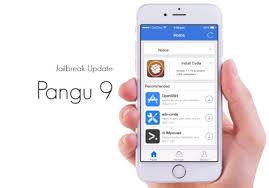
Jailbreaking has always fascinated iOS users. The latest iOS 9 was released, and users across the globe were waiting to jailbreak it. The famous Pangu team has finally released iOS 9 untethered jailbreak for Mac and Windows. Here we will explain how to jailbreak iOS 9.


If you are a diehard fan of jailbreak, here’s good news for you. Jailbreak for iOS 9 is finally available to public. Earlier we had seen video of untethered jailbreak, which was not released to public. Since then, people were waiting for a jailbreak for their iOS 9.
Thanks to the Pangu team, who have finally released a public version tool to jailbreak iOS 9. This tool supports all the iDevices running iOS 9. Pangu tool for Jailbreak is available for both: Windows as well as Mac Users.


How to Jailbreak iOS 9 on iPhone and iPad

Step #1. Very first thing is to backup your device completely using iTunes.
Step #2. Now disable Find My Phone from Settings → iCloud → Find My Phone
 → Toggle to Turn Off Find my iPhone.
Step #3. Also disable Touch ID and Passcode from Settings → Touch ID & Passcode 
→ Toggle to turn off Touch ID.
Step #4. Turn On Airplane Mode ON from Settings.
Step #5. Now it’s time to download the Pangu jailbreak tools for Windows 
and For Mac.
Step #6. Connect your device to PC and launch the Pangu tool followed by 
clicking Start button.
Step #7. Your device will now reboot, once the device is started, Pangu will 
again ask you to put your device in Airplane Mode. The process will continue only
after you toggle on the Airplane Mode.
Step #8. Wait for some time and open the Pangu app on your device after you see a
message on your PC.
Step #9. The Pangu app will ask for permission to access your Photo Library; tap on 
Accept button to continue.
Step # 10. Tap OK when you see a message, “Pangu Would Like to Access 
Your Photos”.
Step #11. After this, your device will reboot again. You can now disable Airplane Mode 
and run the Cydia app.

Read More

iOS 9 Compatible Cydia Tweaks List: Enjoy Your iDevice Your Way


Leave a Comment

After the surprising news from Pangu of successful iOS 9 jailbreak, all we need are tweaks. Here’s the list of Cydia tweaks compatible with iOS 9.


We all have been waiting for an untethered iOS 9 jailbreak, which finally arrived today. Currently the jailbreak tool developed by Pangu is available only for Windows, but we can soon expect the Mac version of this tool. Developers have already started enhancing their tweaks to work on iOS 9.
Jailbreaking an iPhone is of no use without tweaks, the sole motive to jailbreak is to get different tweaks which will ease our job. To make your search little easier we have prepared a list of tweaks that are currently compatible with iOS 9. As we all are aware,developers need some time to re-code their tweaks to work on iOS 9, and not all tweaks that used to work on iOS 8 are compatible with iOS 9. 


List of iOS 9 – 9.0.2 Compatible Cydia Tweaks

  • 20 Second Lockscreen
  • Alkaline
  • Anemone
  • Apple File Conduit “2”
  • ASUpdateHider
  • BatteryLife
  • Bloard
  • BootLogoCustomiser
  • CC Deseparator
  • Cloaky
  • Convos
  • CyDelete8
  • DietBar
  • Disk Pie
  • Eclipse 2
  • HotDog
  • iCleaner
  • IdBox
  • iFile
  • InstaBetter
  • LockGlyph
  • LockSafety
  • Minimal Hosts Blocker
  • MinimalHUD
  • NightMode8
  • NoLockBounce
  • OpenSSH
  • PDANet
  • Phantom
  • PowerApp
  • Priority Hub
  • SameStatus
  • StatusVol X
  • Sixbar
  • SubtleLock – iOS 8
  • SwipeSelection Pro
  • TinyBar
  • UnBold
  • vWallpaper2
  • WatchNotifications
  • WhatsApp++
  • WiCarrier
  • ColorFlow2
  • StatusVol 2
  • TetherMe for iOS 8+
  • Activator
  • CCSettings
  • Filza File Manager
  • Moveable
  • NudeKeys
  • Simi
  • SwipeExpander
  • WinterBoard
  • Zeppelin
  • LocationFaker8
  • AlienBlue++
  • RoundDock
So? What are your favorite tweaks from above list? Share with us in comments 


Read More

Common iOS 9 Jailbreak Problems and How to Fix Them


Leave a Comment

After wonderful news of iOS 9 jailbreak, number of user have downloaded the tool. But out of these, many users were stucked with some or the other error. Here we have provided solutions, if you are one of those with error message.
Update: If you are facing some or the other errors while Jailbreaking our iOS 9 device,download the updated tool released by Pangu Team. This updated version has fixed errors like: 0A error code, improved success ratio and also it removes the Pangu app from your iPhone or iPad after successful jailbreak.
Before proceeding to any of the below solutions, make sure you have the latest Pangu tool downloaded, as most of the issues have been resolved in this updated tool. Even after updating your Pangu tool, you are facing errors, keep reading below for other solutions.


Today is like a festival for jailbreak lovers, as finally the famous Pangu team has released the public version of untethered iOS 9 jailbreak. The process is very simple and we have already explained how to jailbreak iOS 9 using Pangu tool.
There are a certain amount of users who aren’t able to jailbreak their iDevices using this tool. There can be different reasons for this error; we have tried to list down all of them along with their solutions. Below is the guide which may solve your issue, and you might be able to jailbreak your device successfully.

iOS 9 Jailbreak Problems

Unable to jailbreak
If you are simply unable to jailbreak without any error codes, you should try some basic troubleshooting given below:
  • Toggle on Airplane Mode from Settings app on home screen and try again.
  • Try rebooting your device as well as your PC.
  • Try restoring your device from the facility given in Pangu tool, and then try again.
  • You will need to disable Touch ID and Passcode from Settings → Touch ID & Passcode.
  • Also disable Find My iPhone from Settings → iCloud → Find My iPhone.
Even after performing this basic troubleshooting, your issues aren’t resolved, keep reading below for other solutions.
Unable to complete to 100%
If you have encrypted your backup using iTunes, you might be getting error like this: “Error at 45% – Error occurred in preparing the environment, error code (0A)”.
You will need to disable Encrypted backup option from iTunes. To do it, open iTunes on your PC, click your device → Summary, under Backups uncheck the box “Encrypt (device) backup” option. And then take an unencrypted backup of your device. This solution has proved to resolve the issue for many users.
Use iTunes instead of OTA updates
If you are getting some other issues apart from what we discussed, then this might be because you might have updated your iOS 9.0.2 via OTA updates. Try restoring your device from iTunes, this should solve the issue.
Double check your iOS version
If you were too excited to jailbreak your device, and forgot whether it is compatible with your iOS 9, then it’s time to check now. To make sure, you should be running iOS 9 and not iOS 9.1 Public beta version. As the Pangu tool is designed specifically for iOS 9.0.1 and iOS 9.0.2.
Unable to start process because of grey button
In case you have already connected your device, but the Start button in Pangu tool is still grey; then connect your device with iTunes once. Then close iTunes and check on Pangu tool if you can now click the Start button.
Unable to locate Cydia app
If you have completed Jailbreaking process without any error, but unable to see the Cydia app on your screen, then open Photos app, and then run the Pangu app and wait.
Error: /usr/libexc/Cydia/cydo error (2) error
The only possible fix for this error is to restore your device completely and re-jailbreak it.

Read More